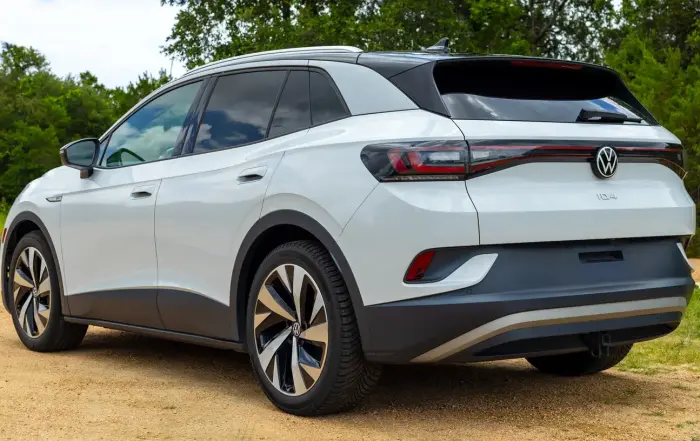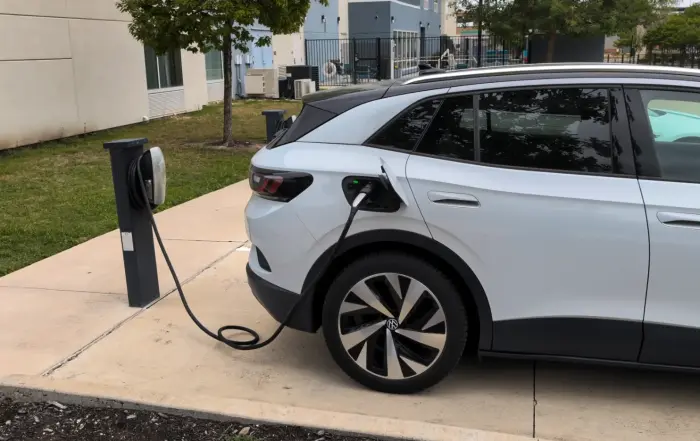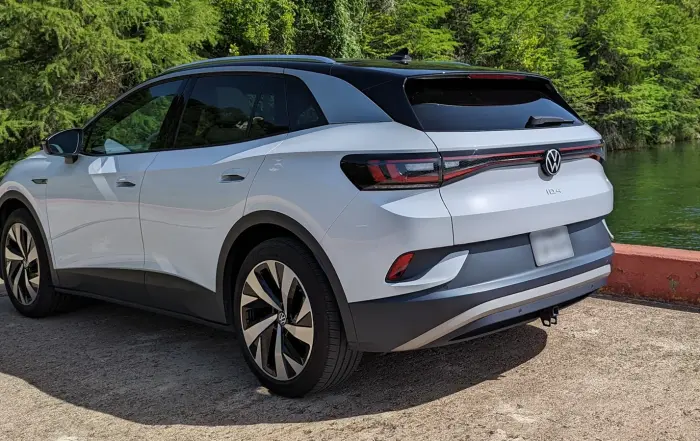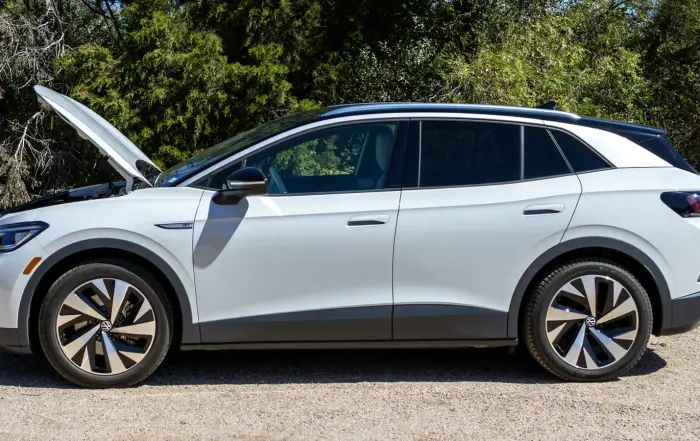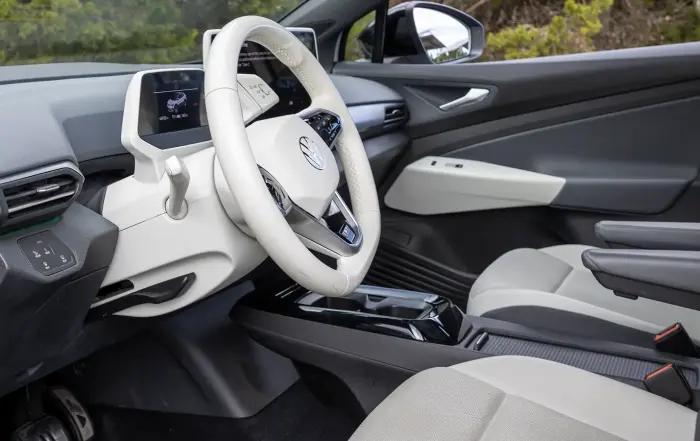
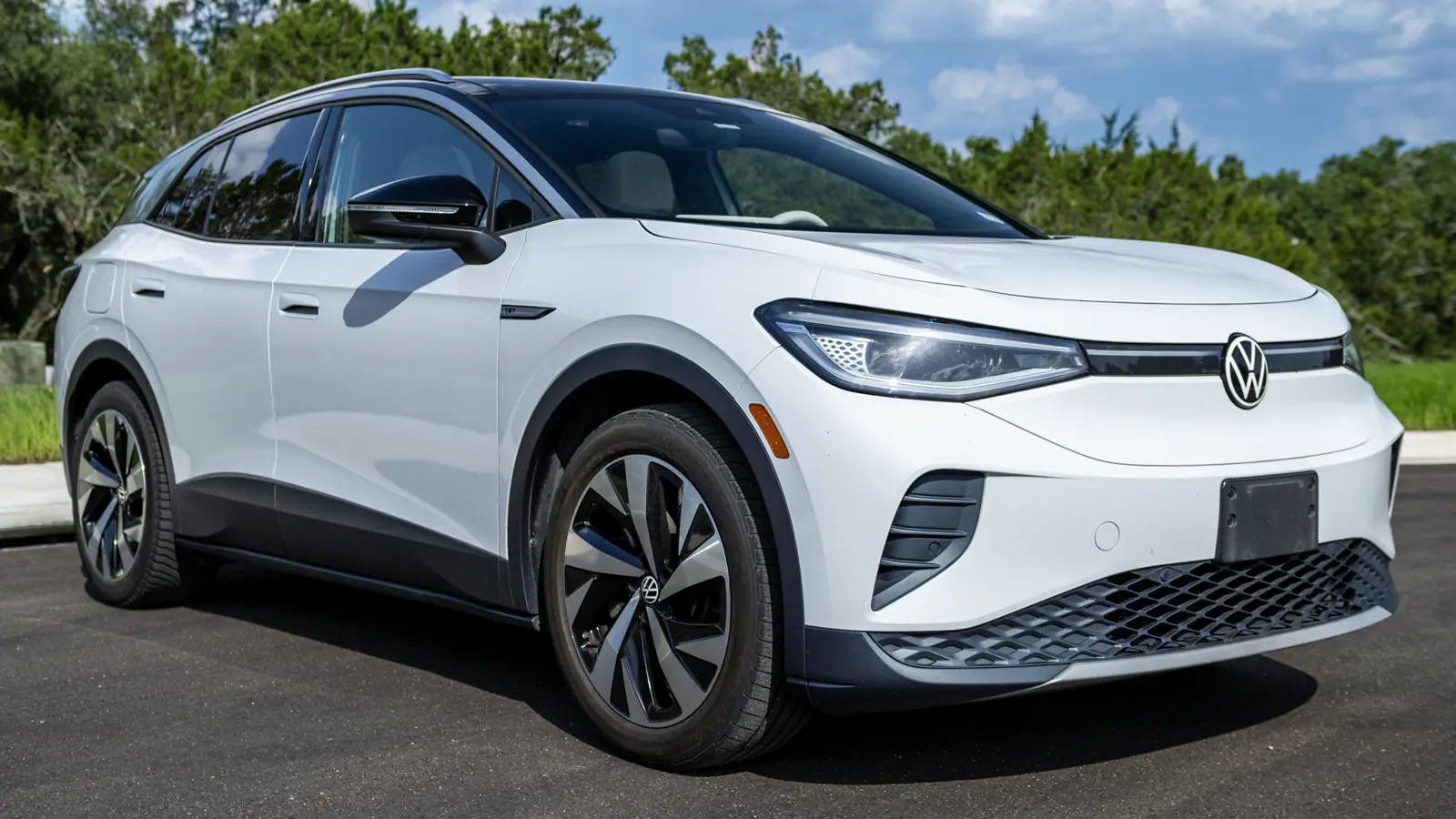

I’ve owned my 2021 Volkswagen ID.4 First Edition for over five years and 80,000 miles. In that time, I’ve come across a lot of different ways to fix some bugs, make things easier, and customize settings for a better experience. Here are the top 25 tips and tricks you should know if you own a VW ID.4.
If you’d prefer, I have created three videos with 25 tips+ that you can watch as well:


Unlock the Charge Port with the Key Fob
If you need to unplug your ID.4, there are three ways to do it:
Using the screen: This method can be a bit inconvenient because you have to get in (or reach in) and interact with the infotainment screen, which can be slow and buggy at times.
Pulling the emergency release lever: Pulling this cord is meant for emergencies and it would be a hassle to open the trunk each time (see “charge port manual release” tip below).
Double-clicking the unlock button on the key fob: Using the key fob is the easiest and quickest way to unlock the charge port.

This key fob can do more than it might initially seem.
When you double-click the unlock button on your key fob, not only does it unlock the doors, but it also releases the locking mechanism for the charge port. I have found that this method works in almost all cases, even when there is a charging issue (including public chargers).
If the fob doesn’t unlock the charger, you’ll want to check out tip #6 for the last resort way to do it.
Improve Infotainment System Performance
The VW ID.4 has faced criticism for its slow infotainment system, even with the latest software version. Here are three tricks I have found to help improve its performance.
Remove the Map Module
By default, the ID.4 infotainment system includes a map module on one of the customizable screens. This app consumes a significant amount of processing power. Considering that many people prefer using Apple CarPlay or Android Auto for navigation anyway, there’s no reason to have this app displayed.

This is the map module you are looking for.
To remove it, follow these steps:
- Hold your finger on the map for 4-5 seconds until the screen looks like the image below.
- Tap the trash can icon to remove the map module.

Once you hold your finger on the map module, a trash icon will appear.
If for some reason you decide that you want this map to be shown, you can restore it. Just hold your finger on the screen for 4-5 seconds again, and a menu will appear, allowing you to re-add it.
Turn Off Menu Text Animation & Hand Gesture Controls
Other default features of the ID.4’s infotainment system include menu text animation, which auto-hides a tile’s label until your finger approaches the screen, and hand gesture controls. While the animation may look appealing, it drags the system’s performance down quite a bit. Hand gesture controls do the same and I find that they don’t work very well anyway. I recommend turning both of these features off.
To disable these settings, navigate to:
Settings > Screen > Animation when finger near screen

Turn off both the “animation when finger near” and “hand gesture” settings.
While removing the map and disabling these two features won’t fix all of the lag you’ll experience with the ID.4’s infotainment screen, they certainly go a long way in making it more tolerable to use.
Schedule Charging Times by Location
If your utilities are based on a time-of-use (TOU) plan, then you will want to create a charging schedule to draw electricity when it’s the least expensive time to do so. The ID.4 makes this a relatively simple process, but let’s go through it.
- Start by navigating to Charging > Locations.
- Once there, you’ll need to give your location a name. For this example, I’m going to use “Home.”

- After naming your location, you’ll see this menu with lots of options including:
- Reducing your AC charging current – Only use this if you have an older home or if you purposely want your charge to go slower than usual.
- Setting departure times – Departure times ensure that your vehicle will only start charging at a certain time to avoid filling the battery up too quickly. This feature is to help keep your ID.4 from sitting at a high state of charge for long periods of time, which isn’t good for your battery.

- Scroll down the menu to where it says “preferred charging times.”

- After selecting one of the rows you will be provided a screen with two clocks, with the first representing when the vehicle will start charging and the second for when you want it to stop. Set them to your preferred times.
Fix Electrify America Charging Issues
Despite being owned by Volkswagen Group of America, some ID.4 owners, including me, have experienced a variety of charging issues using the Electrify America network. This includes slow charging power levels and session failures. Most of these problems are caused by some type of communication error between the vehicle and the charger.
Here’s a tip I received from an Electrify America customer service representative that reduces the chances of communication issues. This trick works for all EV models as well, by the way.
When you’re charging at an Electrify America station, follow these steps:
- Use the Electrify America app to locate a working charger and park in the designated stall.
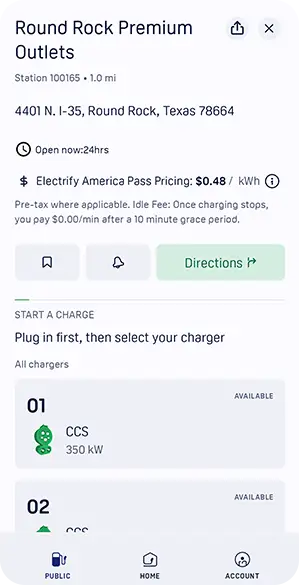
Open stalls will say “available” in the app.
- Ignore the screen stating “please plug in first.”
- Instead, initiate the charging session on your phone by tapping the charging station and swiping right to begin the charge.
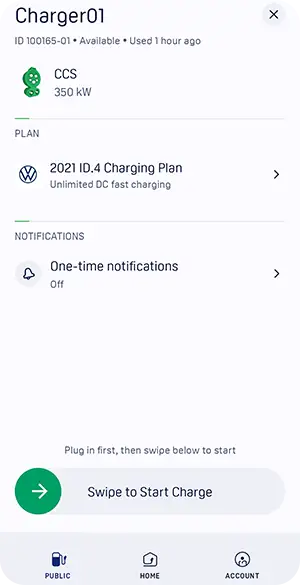
Before plugging in, swipe to activate charging in the app.
- Wait a few seconds until the charging stall screen changes. It will look like this and say “please plug in.”

Once you request a charge through the app, the stall’s screen will display this message.
- Only after this point, plug in your vehicle.
I’m not exactly sure why this works, but it likely involves pre-communication with the charger to prepare it for the session. Regardless, I’ve had great success using this process and I highly recommend trying it if you notice problems charging your ID.4 at an Electrify America station.
Reset the Infotainment System
As stated a few times now, the ID.4 infotainment system isn’t the best out there. You’re probably going to encounter an odd bug or unresponsiveness at some point. The good news is, sometimes a simple soft reset of the software can fix a lot of these problems.
To soft reset your ID.4’s infotainment system:
- Locate the power button at the base of the screen (not the ignition button on the side of the steering wheel column).
- Hold your finger on the power button for approximately 10 seconds.
- The screen will turn black and then restart itself.
Resetting the screen won’t fix everything. If it doesn’t, then the next best option is to exit the car, let it sleep for 20-30 minutes and then get back in. That’s the only way to reset the entire vehicle without messing with the 12-volt battery.
Manual Charge Port Release
If your charge port is stuck in a locked position and using the key fob or infotainment screen to unlock it isn’t working, then you should use the manual release. This method should only be used in emergency situations, such as the screen failing, if the vehicle has lost power, or a malfunctioning charging session.
To access the manual release:
- Open the trunk.
- On the right side of the cargo area, you’ll find a small black knob attached to a perforated section of the lining.
- Pull this knob back to reveal a cord with a yellow handle.

The ID.4’s charge port manual release should only be used when nothing else works.
To release the locking pins:
- Stand behind the ID.4, reach in with your left hand and grab the looped handle.
- Pull slightly upward and directly back towards the rear of the vehicle. It takes a little force to work.
- You should hear and feel the locking pins release.
If you don’t hear or feel anything, try pulling a bit harder and make sure you’re pulling in the right direction as explained above. Pulling the cord at an incorrect angle won’t work.
Unlocking the ID.4 with a Dead Key Fob
The ID.4 uses a keyless entry system which means there isn’t normally a physical component to locking and unlocking the doors. But, how do you unlock the car when the fob dies? Well, like with every vehicle with a keyless entry system, there’s a backup plan. Follow these steps.
- Locate the small rectangular button on the side of the key fob. Simultaneously push this button in and pull up on the protruding piece where you can attach a ring holder. This action will release the physical key.
- Use the physical key to remove the cover from the door handle. Look for a special insert on the bottom of the driver’s door handle where the key can fit.

- Push the key into this cutout and pull it towards you to remove the cover, revealing a keyhole.

- Insert the physical key into the keyhole and twist it to gain access to the vehicle.
See the section labeled “driving the ID.4 with a dead key fob” to learn how to turn the ID.4 on and drive it once you get inside.
Cleaning the Backup Camera
I didn’t learn that the ID.4 had a backup camera cleaner until more than a year into my ownership. In case this is also news to you, here’s how you activate it.
- Pull the windshield wiper stalk toward you.
- Hold it for a few seconds.

The backup camera washer is a nice feature that I didn’t know about for more than a year.
I know, pretty simple, but sadly it took me forever to accidentally activate it once to learn that it existed.
Set Seat Memory
Setting the memory for both front seats is pretty simple and very similar to how it works in most new vehicles.
All you need to do is position your seat the way that you want it to be remembered, hold down the “set” button within the seat controls for a few seconds and then press “1” or “2” depending on which profile you want it to be saved as.
Activate Wiper Service Mode
There are three methods to put the windshield wipers in service mode.
Infotainment Screen Menu
To put the wipers into service mode from the infotainment screen, the ignition must be on (or someone needs to be in the driver’s seat) and you go to:
Vehicle > Service > Wipers in Service Position

The button to turn on wiper service mode is under the “vehicle” menu.
After Parking
Once you put the ID.4 into park and release the brake, a screen will appear with a shortcut to put the wipers into service mode.
Using the Wiper Stalk
Put the ID.4 into park, take your foot off of the brake and push up on the wiper stalk.
Heated Seats Shortcut
The ID.4’s heated seat controls are a bit clunky. While it may seem they can be accessed directly on the infotainment screen, the software will instead open the climate control menu first. However, there’s a faster way to operate them.
- Place your index and middle fingers together.
- Tap them on the temperature icon located at the base of the infotainment screen.
- A single tap activates the highest heat setting, a second tap activates the mid-level setting, a third tap activates the lowest setting, and one final tap turns the heated seats off.
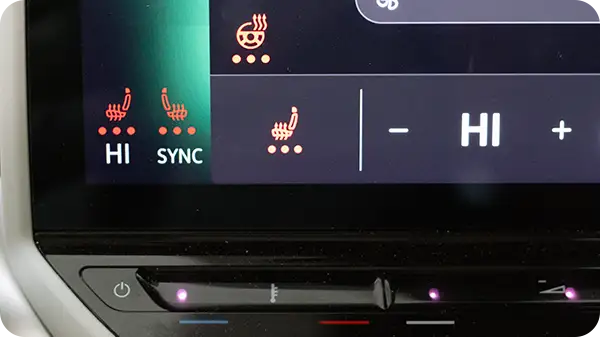
Tap the temperature icon with two fingers to control the heated seats.
You can also control the ID.4’s climate by using voice commands instead.
Wide-Angle Backup Camera View
I’ve met some ID.4 owners who weren’t aware of this feature, so I want to highlight it. The default backup camera on the ID.4 is adequate, but it can become distorted as you approach objects, and it offers a relatively narrow view. That is to say, it’s not the most helpful.
The good news is that there’s a wide-angle camera view available which is much less distorted and, in my opinion, safer for daily use.

In the default backup camera view, you can only see directly behind the vehicle.

Using the wide angle view, you can see that pedestrians are nearby.
To activate the wide camera angle view:
- Put the vehicle in reverse.
- Tap the hamburger menu icon (the three horizontal lines).
- Among the icons that appear in the menu, look for the third one, which shows a vehicle with lines behind it.
Unfortunately, you’ll need to go through this process every time, as there’s no way to change the default camera view. We can only hope that a future software update might offer this option.
Simultaneously Control All 4 Windows
The Volkswagen ID.4 features a somewhat unusual (and inconvenient) window switch design with two physical buttons and a touch button labeled “rear” that changes the controls to the back windows. There is an option, however, to roll all four windows up or down at the same time.
- Locate the “rear” button on the window switch panel.
- Hold your finger on the “rear” button until it begins flashing orange.
- This flashing indicates that all four windows are now activated, and you can control them all at once.
Driving the ID.4 with Dead Key Fob
We learned how to unlock your ID.4 if the key fob dies, but how do you drive it? It’s very simple.
- Place the key fob in the designated area in the center console where you see a key icon.
- Push the brake to turn the vehicle on.
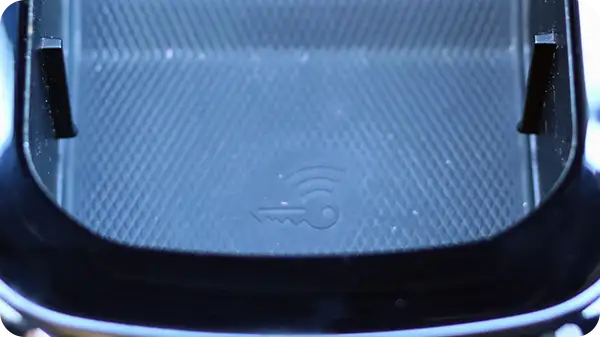
Place your key fob on this symbol located in the center console.
ID.4 Help Menu
The ID.4 comes with a myriad of features including voice controls, customizations, and other operations that you may not be familiar with. To help you out, Volkswagen created a help menu filled with a list of functions and examples.
- To get to this menu, simply say “Hello, ID, show help.” This will prompt the help menu to appear.
- If you don’t have hands-free voice activation turned on, you can also press the voice control button on the right side of the steering wheel and say “show help.”

This menu contains lots of information on how to use the ID.4’s software.
Be sure to check out my Volkswagen ID.4 voice controls article for 25+ commands you can use.
Turn Off Adaptive Cruise Control (ACC)
The ID.4, by default, uses a variety of sensors to keep your vehicle a certain distance away from other cars on the highway automatically when cruise control is activated. This is called adaptive cruise control (ACC). However, some drivers don’t like ACC and want to turn it off. Well, you can in the ID.4.
- While parked or driving, press the cruise control master switch button (the one in the top left with the speedometer symbol).
- Swipe right on the “mode” button to change the ACC function to off.
- To turn it back on, swipe left on the “mode” button.

The mode touch-sensitive selector on the ID.4 steering wheel.
I’d recommend doing this while parking, because the touch controls can be a bit finicky.
Keeping the ID.4 on Without a Driver
One annoying issue with the ID.4’s automatic power on and off feature is that the vehicle will turn completely off whenever the driver gets out of the seat. This could mean the HVAC system turning off, along with any media playback, even if other passengers are present. It can be quite frustrating at times.
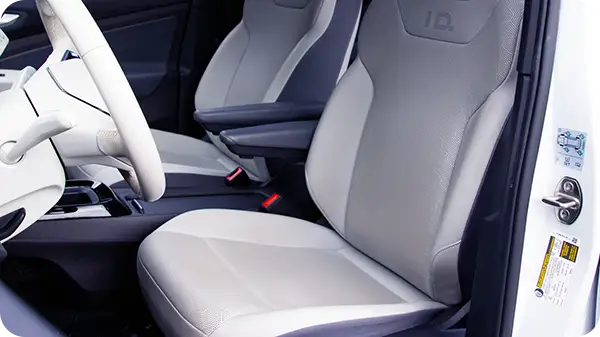
The ID.4 driver’s seat has a sensor that controls the auto on and off function.
There is a way around this, however. Just latch the driver’s seatbelt prior to getting out of the seat and the ID.4 will stay on as though you never left the seat. It’s definitely an inconvenient workaround, but much better than having to constantly reactivate everything each time the driver leaves their seat, like during charging sessions.
While hopefully Volkswagen addresses this issue with a software update down the road, it’s all we have, for now.
Pausing Media by Turning Volume Down
If you are listening to some form of media through Android Auto or Apple CarPlay and need to temporarily turn the volume down, make sure you turn the volume all the way off. That’s because the ID.4 will automatically pause playback for some apps if you turn the volume all the way down using either the audio slider at the base of the infotainment system or the audio control on the steering wheel.
Just keep in mind this won’t work for every app or any media played via Bluetooth from your phone.
Skipping Media by 15 Seconds
For select apps using Apple CarPlay, Android Auto, and those built into the ID.4’s software, you can skip media playback in 15-second increments, which I use most often to fast-forward through podcast ads.
- To skip media ahead by 15 seconds, push the down arrow button on the right side of the steering wheel controls.
- To rewind media by the same amount, push the up arrow instead.

The audio controls on the ID.4 steering wheel.
Pushing and holding the buttons doesn’t do anything, so you’ll need to push them each time for every 15 seconds you want to skip forward or backward.
Closing the Trunk from Inside the Cabin
You can close the ID.4’s trunk from inside the cabin using two different options.
Using Door Panel Button
- Make sure the ID.4 is turned on (press your foot on the brake or the start button on the steering wheel column).
- Pull and hold the trunk switch on the lower part of the door panel.
- You need to continue to hold the switch until the trunk is completely closed or it will stop when you let go.
Using the Key Fob
- Press and hold the trunk button on the key fob.
- Continue to hold the button until the trunk completely closes or it will stop when you let go.
Dimming Reading Lights
If you need to turn on the cabin reading lights but find the default setting to be too bright, you can dim the lights to be less distracting.
- Place your finger on the light that you would like to activate.
- Keep your finger on the light for a few seconds and it will dim significantly.
You can also tap to turn the light on and then tap and hold for a few seconds to dim the light, but I find that it’s more likely I’ll accidentally turn the light off completely using this method.
Preconditioning the Battery in Winter
If the VW ID.4 is your first EV and you live where the temperature drops below 50°F (10°C), you’ll want to know how to precondition it to maximize range and charging speeds during the colder months of the year. This is especially true if you are parking it outside or aren’t charging it each night.

Winter weather can bring charging speeds to a halt.
Unfortunately, the ID.4 does not have a preconditioning software feature built-in. The only way to warm up your ID.4’s battery to closer to an ideal temperature is by turning on the heater, to the highest fan and temperature setting, and letting it run for 15-20 minutes prior to driving it. If possible, this should be done while the vehicle is still charging or it will use your battery’s stored energy.
Not only will this provide you with a warm cabin to get into, but it will ensure that your battery pack and drivetrain can operate as efficiently as possible once you are on the road.
Activating the Emergency Brake
Emergency brakes used to be physical levers, but more and more cars of all kinds are changing how you engage them. The VW ID.4, along with most EVs such as the Rivian R1T and all of Tesla’s models, have emergency braking systems that are activated in a completely different way.
If you find yourself in a situation where you need to apply emergency brakes, you should push and hold in the parking button (located on the end of the gear shifter) until the vehicle comes to a complete stop.

Hold the park button to activate the emergency brake while driving.
This feature should never be used in situations where you are traveling at a high speed and other vehicles are behind you, as it’s the equivalent of slamming your foot down on the brake pedal.
Customizing the Infotainment Screen
If there are common menus or widgets that you use more often than others, Volkswagen allows you to customize your ID.4’s infotainment screen.

The customization menu for the ID.4 infotainment system.
- On any home screen, press and hold your finger down to put the software into edit mode.
- You can select the pencil icon to add tabs of widgets (up to 4 tabs can be created).
- You must select from the provided layouts with display boxes of various sizes (but not all boxes have to be filled).
- Each display box size is compatible with different widgets and menu items.
- You can also delete an entire tab by selecting the pencil icon and then the trash icon located in the upper right.
Rolling Windows Down with Key Fob
On a hot summer day, you might want to vent your ID.4’s windows so that a nice breeze can come through and help blow away some of the heat. While VW’s app doesn’t have a control for this, you can roll all four windows down using the key fob.
- Press and hold the unlock button on the ID.4’s key fob.
- Once the windows start rolling down, you can release the button at any time to stop the process.
Keep in mind, there’s no way to roll the windows back up using the ID.4’s fob. You’ll have to get into the car and do it manually.
Other ID.4 Content You May Like
Here are the other articles I’ve written about my ID.4 that you may find helpful.
- VW ID.4 Long-Term Owner Review (5 Years & 80k Miles)
- VW ID.4 Real World Range (Highway & Cold Weather) + Tips
- 6+ Must-Have VW ID.4 Accessories
- VW ID.4: Maintenance Costs & Reliability After 80,000 Miles
- VW ID.4 Interior: Owner’s Review (Features, Durability, Comfort)
- 25+ VW ID.4 Voice Commands (From an Owner)
- VW ID.4: 30+ FAQs Answered by an Owner
Sources
Related Articles